
Last modified on January 3, 2026
This is another article about plugin development for IntelliJ-based IDEs. In this article, I am describing how to implement some support for JSON or YAML files using a JSON Schema. While the JSON support is expected, the YAML support is a bit more surprising. It is possible because JSON and YAML are very similar formats, YAML 1.2 even being a superset of JSON.
I recently implemented that trick in my plugin
FHIR® and SUSHI Support to provide a better
experience while working with a specific YAML file (the sushi-config.yaml file).
I discovered that neat feature in the
YAML documentation, but I had to use the
IntelliJ Platform Explorer
to discover how a plugin could register a new JSON Schema in the IDE.
That topic isn't covered by the
IntelliJ Platform SDK Documentation
documentation, so I am sharing my findings here.
Supported features#
The features automatically provided by the IntelliJ SDK (at the time of writing) when a JSON Schema is enabled are:
- Autocompletion suggestions based on the schema;
- Validation of values based on the defined type and constraints;
descriptionfields are used to annotate the YAML elements;- the
typesare properly enforced; definitionsare properly handled internally, meaning the SDK is able to follow references;- For objects,
properties,minPropertiesandmaxPropertiesare supported.
Notably, the following features are NOT supported:
- Despite setting
additionalPropertieson an object, extra properties are not marked as errors; - In arrays,
uniqueItems,minItemsandmaxItemsare not enforced (despite the object's equivalentminPropertiesandmaxPropertiesbeing supported);
There are many other features of JSON Schema that I did not test, so this list is not exhaustive. Overall, the support is good enough to provide a nice assistance to the user, because it's tightly integrated into the IDE. But if you're looking to perform a full validation of files against a JSON Schema, you may want to consider alternative implementations, because of the missing features listed above.
For my plugin, I wanted to provide a better experience when editing the sushi-config.yaml file, not a
full validation, so I'm satisfied with the current state of the support.
Let's proceed to the implementation!
The implementation#
Let's go into the implementation details. For these examples, I am using the IntelliJ Platform Plugin Template, but your plugin structure may differ slightly.
The implementation is straightforward, and requires three main steps: a JSON Schema, a provider class with its factory, and a registration in the plugin configuration file.
A JSON Schema#
First, we need a JSON Schema to work with. Creating a JSON Schema is out of the scope of this article, but there are many resources online to help with that, and I found it rather easy to write one manually. I'm also sure there are good tools with graphical interfaces to help visualizing and editing the schemas.
Once you have your schema, you need to add it to your plugin resources.
In the plugin template structure, that would be under my-plugin/src/main/resources/.
For this example, I simply named my schema file schema.json.
A provider#
Next, we create a new class extending JsonSchemaFileProvider to provide our schema to the IDE.
But that interface we are extending is not part of the standard IntelliJ API, but is an additional plugin that we
need to declare as a build dependency in the Gradle configuration (despite its name, it's not a module but a plugin):
 gradle.properties
 | |
Or with the regular gradle.build.kts file (with the IntelliJ Platform Gradle Plugin 2.0+):
 gradle.build.kts
 | |
Now, we can implement our provider:
MyJsonSchemaProvider.kt | |
The following methods are implemented:
isAvailable(VirtualFile): the IDE will query this method with the file for which it wants to determine if the JSON Schema applies or not. In this example, I simply check if the file name issushi-config.yaml.getName(): returns the name of the schema, and will be displayed in the IDE.getSchemaType(): I actually have no idea about this one, I saw no difference changing the value.getSchemaVersion()(optional): the JSON Schema version that is implemented. I'm not sure if there's any reason to stick with an older version than2020-12, unless you're dealing with legacy schemas.getSchemaFile(): returns the schema file as aVirtualFile. In this example, I am loading it from the plugin resources (meaning the file is at my-plugin/src/main/resources/schema.json). There's a nice utility method to load a resource as aVirtualFilein JsonSchemaProviderFactory.
The next step is to create a factory for our provider. This is really straightforward:
MyJsonSchemaProviderFactory.kt | |
A registration#
The last step is to register our factory in the plugin configuration file, and declare a runtime dependency on the JSON plugin. Since it's a plugin, it could be unavailable at runtime, and IntelliJ offers us two choices to deal with that:
- refuse to load our plugin, because we require the JSON plugin;
- continue to load our plugin, but disable that feature.
Which solution to implement depends on the context of the developed plugin. At the time of writing, I am unable to disable the JSON plugin in my IDEs, so I am unsure if that situation is really possible, but I choose the second solution for my plugin – better safe than sorry. The first solution is simply implemented by declaring a mandatory dependency on the JSON plugin:
 plugin.xml (mandatory dependency)
 | |
The second solution is implemented by declaring an optional dependency on the JSON plugin, and creating a second plugin configuration file that is only loaded when the JSON plugin is available. You can name it as you want.
plugin.xml (optional dependency) | |
plugin_with_json.xml (optional dependency) | |
The result#
Here is the result of the implementation in my plugin, when editing a sushi-config.yaml file:
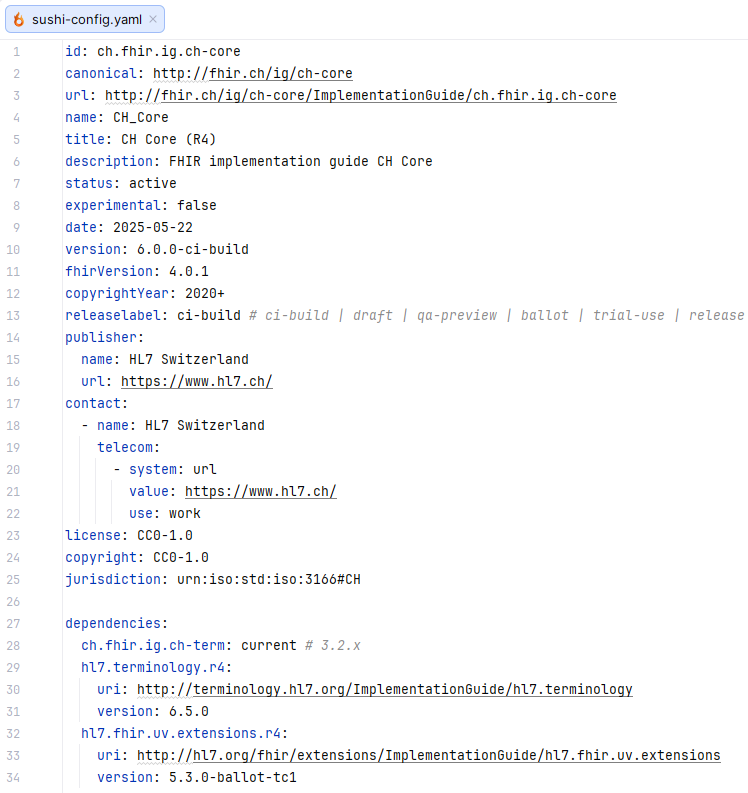
The ‘sushi-config.yaml’ file opened in the IDE
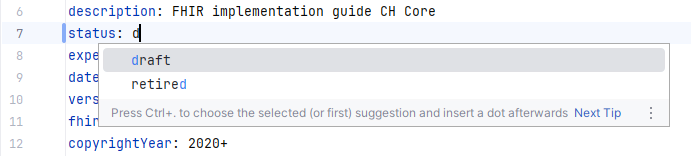
Autocompletion suggestions based on the JSON Schema

An example of validation error
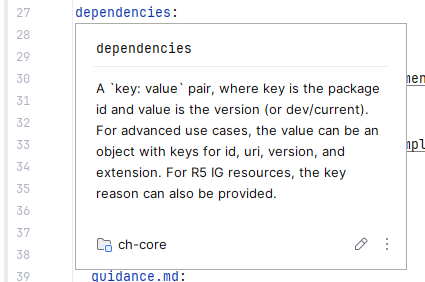
The description shown for the element ‘dependencies’